7 days (1 - 5 Sets)
30 days (6 - 2000 Sets)
To be negotiated ( > 2000 Sets)
Product Description
Specification
Product name
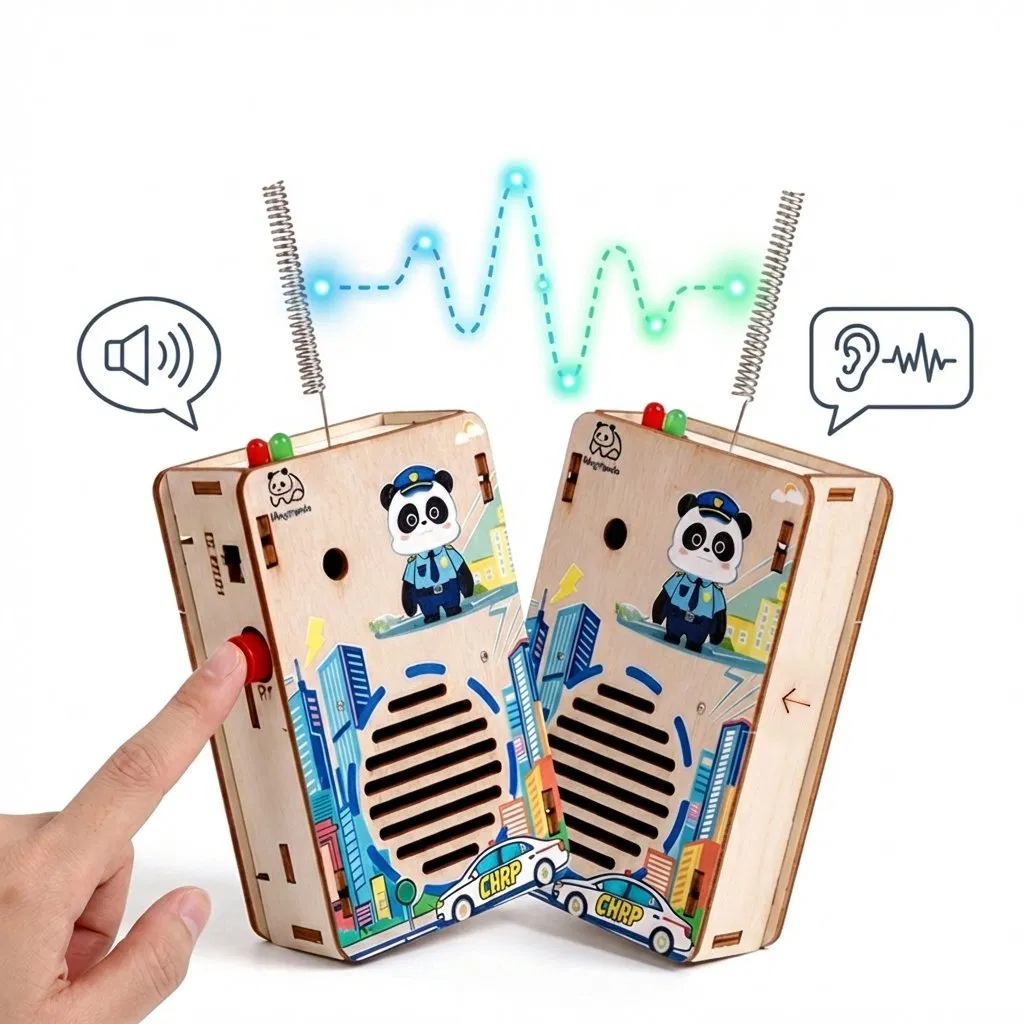
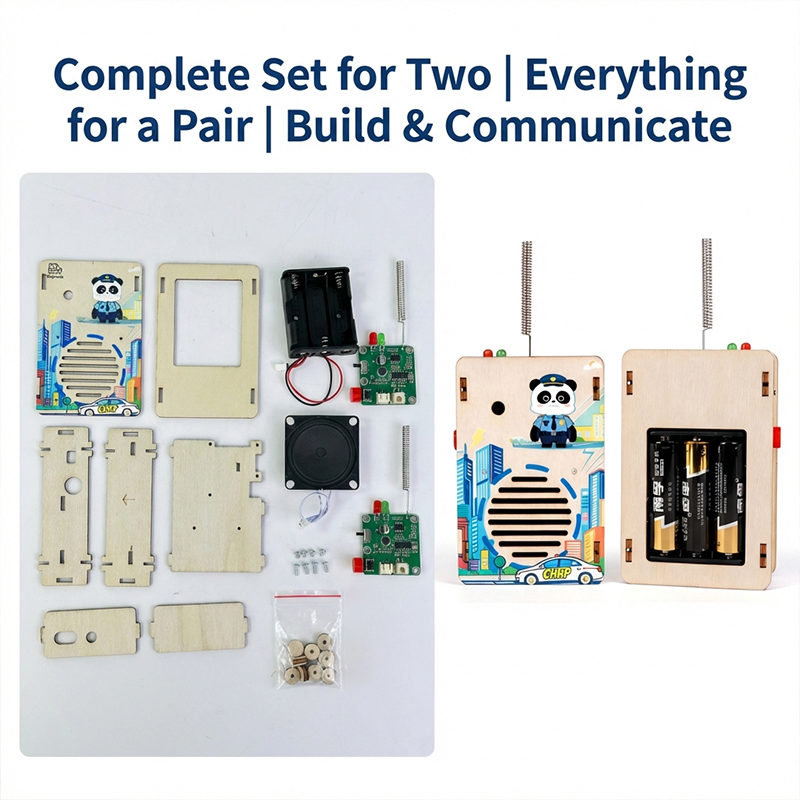
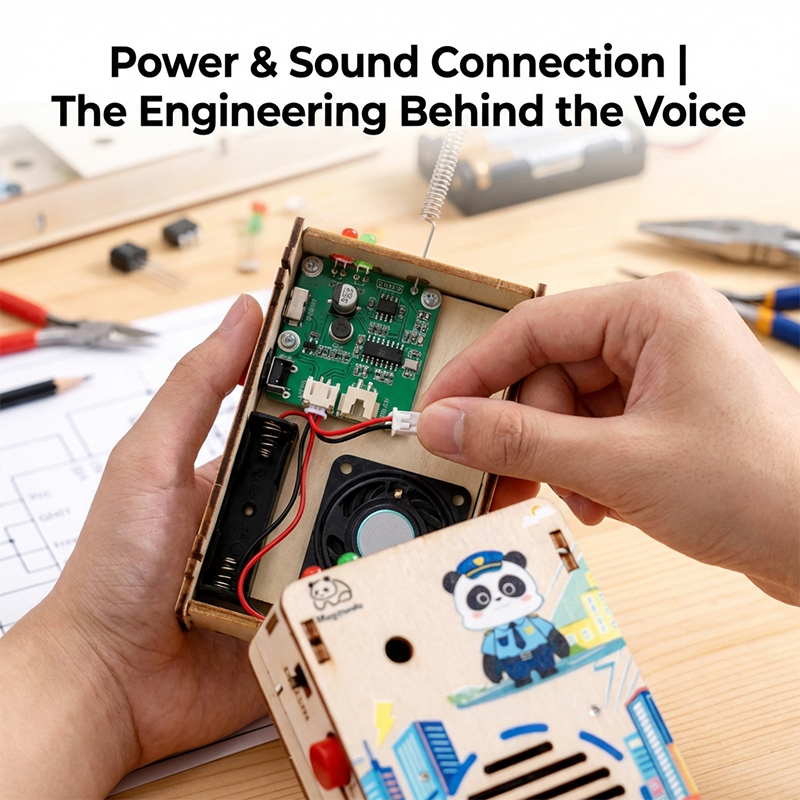
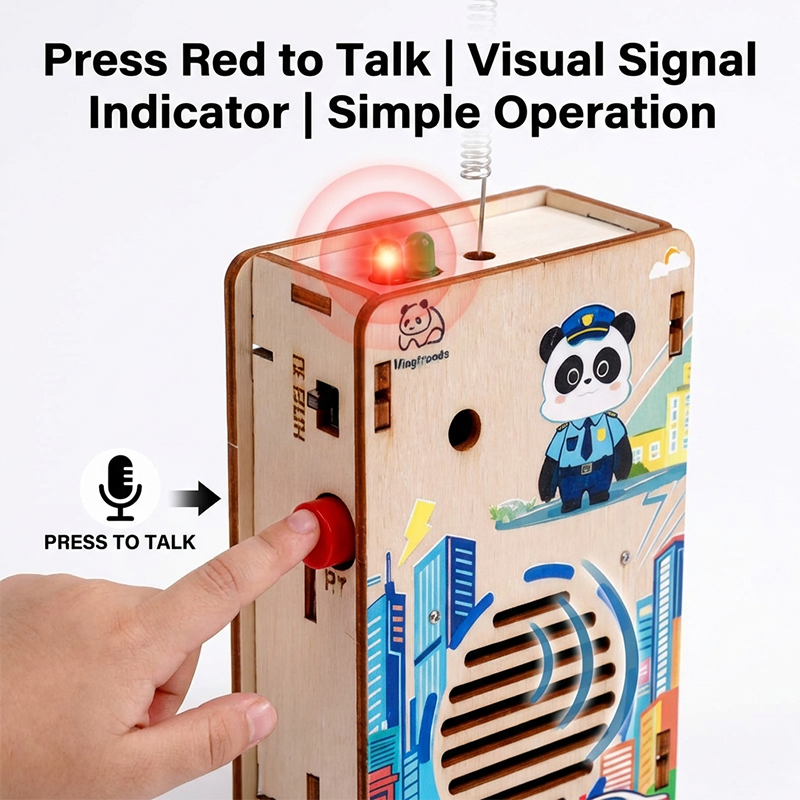
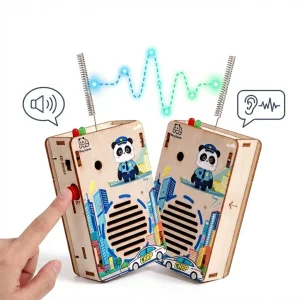
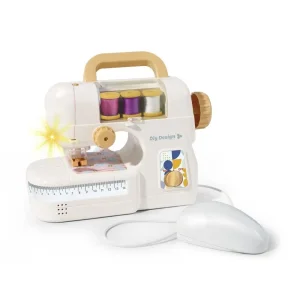
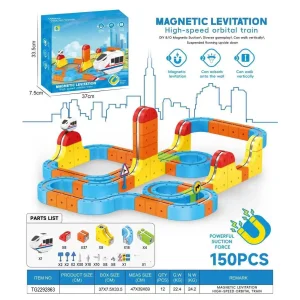
STEM Educational Toys
Age Range
7-12y, 7-12m, 5 to 7 years, 8 to 13 Years, 14 years up, 2-3 Years, 3-6 years
Material
Wood
Battery
Electric, Rechargeable
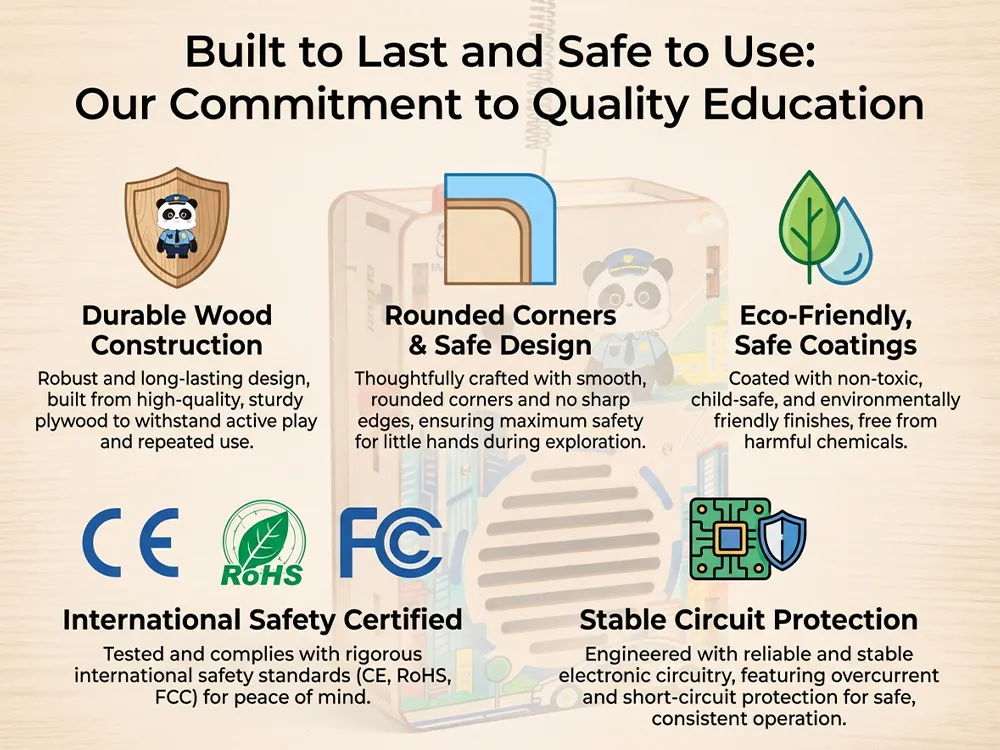
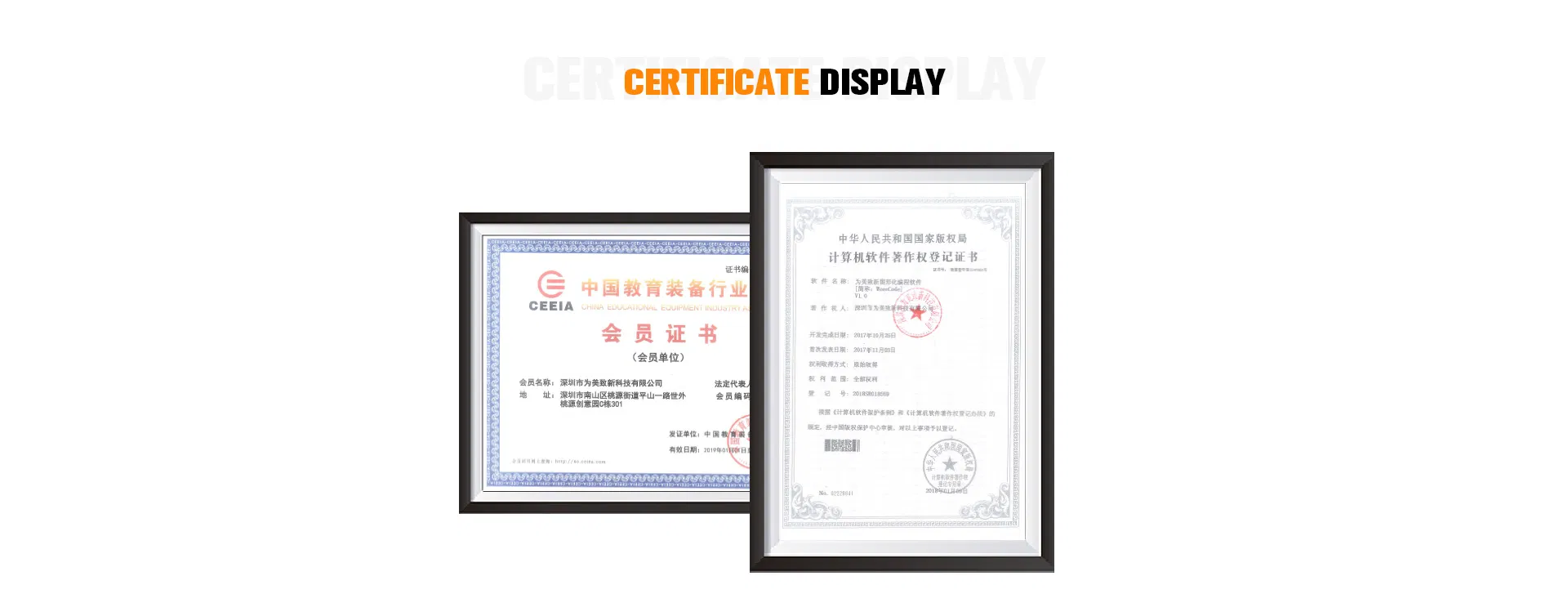
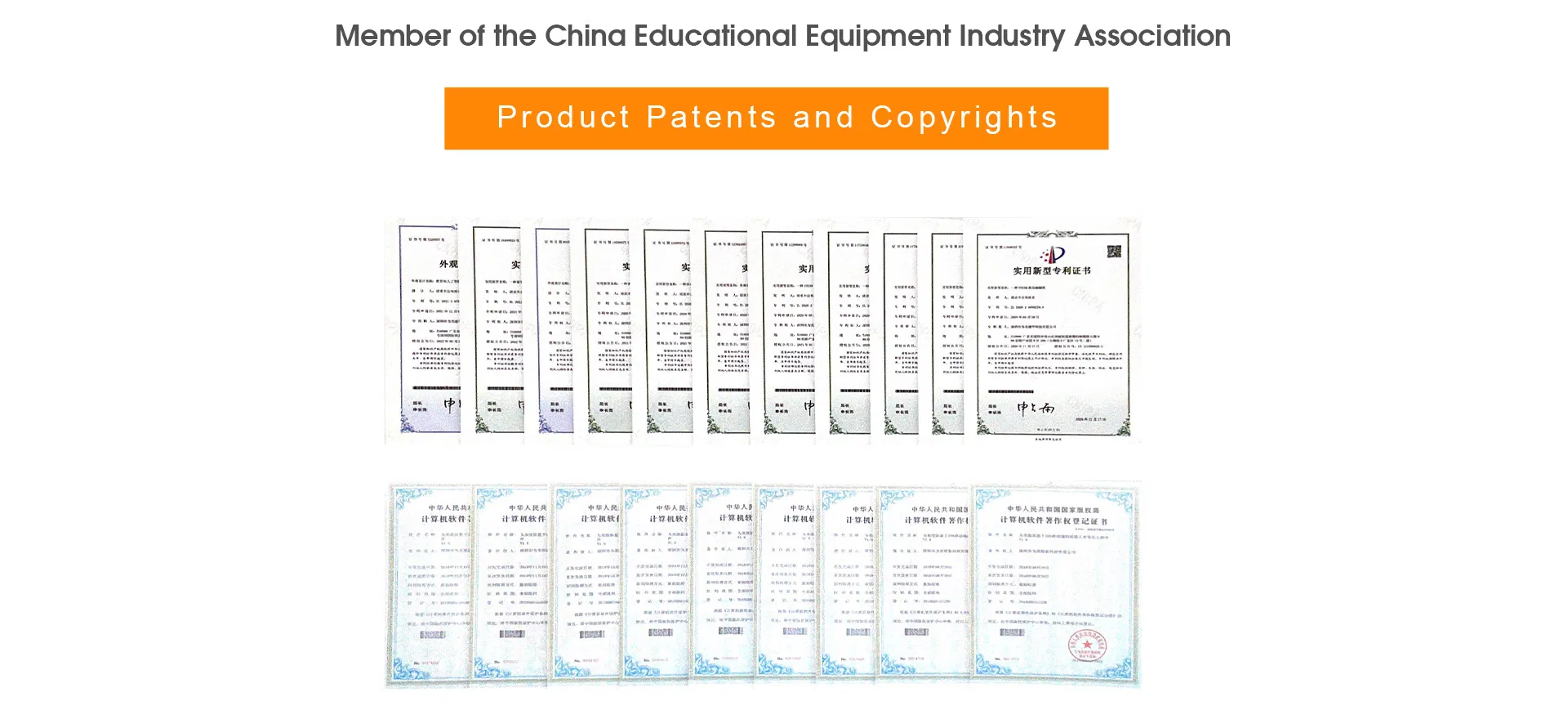
Certifications
Our Exhibition
Frequently Asked Questions
QWhen I turn on the robot, my robot has no response, why?
1. Low voltage, please recharge all your batteries or replace with new batteries.
2. Batteries installed in wrong polarity (+/-).
3. Incorrect wiring on the battery holder or motor.
QWhen I controlled the robot to move forward, it moved backwards. How can I fix this?
The wiring of the motor is connected in reverse. Please reconnect the wiring to resolve the direction issue.
QHow do I program my robot or restore its factory settings?
Please download the software on our website, connect the robot to your PC via a USB cable, select the correct serial port and main-board type in the software to start coding. "Restore Firmware" offers different options: "Online Firmware" supports live testing of your program with immediate response; "Factory Firmware" resumes default settings; and "Mobile Firmware" supports APP control.
QI cannot connect the robot to the computer via USB cable or wirelessly, how can I fix it?
This typically happens if your computer has not installed the driver for the mainboard. Please install the driver from the software's "Help" menu, restart the robot, and attempt to connect to the computer again.
QWhy doesn't the Line-following Sensor work?
1. Make sure the distance between the Line-following sensor and the map is between 1-2cm for the best working range.
2. Avoid using Line-following mode under strong light, which can interfere with the sensor.
3. Ensure you use non-reflective material to construct your line-following map.
QWhy cannot the software read the value of the sensor?
Please check your wiring configuration, and make sure that all sensors are connected to the exact port assigned in your programming software.
 Ebid Toy